ConductorOne provides identity governance for AWS. Integrate your AWS instance with ConductorOne to run user access reviews (UARs) and enable just-in-time (JIT) access requests.
A newer version of this connector is available. If you’re setting up an AWS connector with ConductorOne for the first time, use the v2 version.
An updated version of this integration is available. This version of the connector is no longer available for installation. If you’re integrating AWS for the first time, use the updated version.
This task requires either the Connector Administrator or Super Administrator role in ConductorOne.
1
In ConductorOne, navigate to Admin > Connectors > Add connector.
2
If this is your first AWS integration, the integration form opens automatically. Otherwise, click Add connector.
3
Choose whether to add the new AWS connector as a data source as a data source to an existing application (and select the app of your choice) or to create a new application.
Do you SSO into AWS using your identity provider (IdP)? If so, make sure to add the connector to the AWS app that was created automatically when you integrated your IdP with ConductorOne, rather than creating a new app.
4
Set the owner for this connector. You can manage the connector yourself, or choose someone else from the list of ConductorOne users. Setting multiple owners is allowed.
The AWS connector owner must have the following permissions:
Connector Administrator or Super Administrator role in ConductorOne
Ability to create an IAM Role in AWS
ConductorOne uses an IAM Trust relationship between your AWS Account and ConductorOne’s Service AWS Account.
This is the AWS recommended method of sharing access to AWS Accounts. ConductorOne has a specially created and isolated AWS Account dedicated to the AWS integration.
For advanced configurations, the only trusted entity should be the following ARN: arn:aws:iam::765656841499:role/ConductorOneService
A user with the Connector Administrator or Super Administrator role in ConductorOne and the ability to create an IAM Role in AWS must perform this task.
Step 2: Create an AWS IAM Role for ConductorOne to use
1
In a new browser tab, sign in to your AWS Account using your existing credentials or SSO.
To support use of AWS Organizations: You must create this IAM Role in the management (formerly called master) account of the AWS Organization.
2
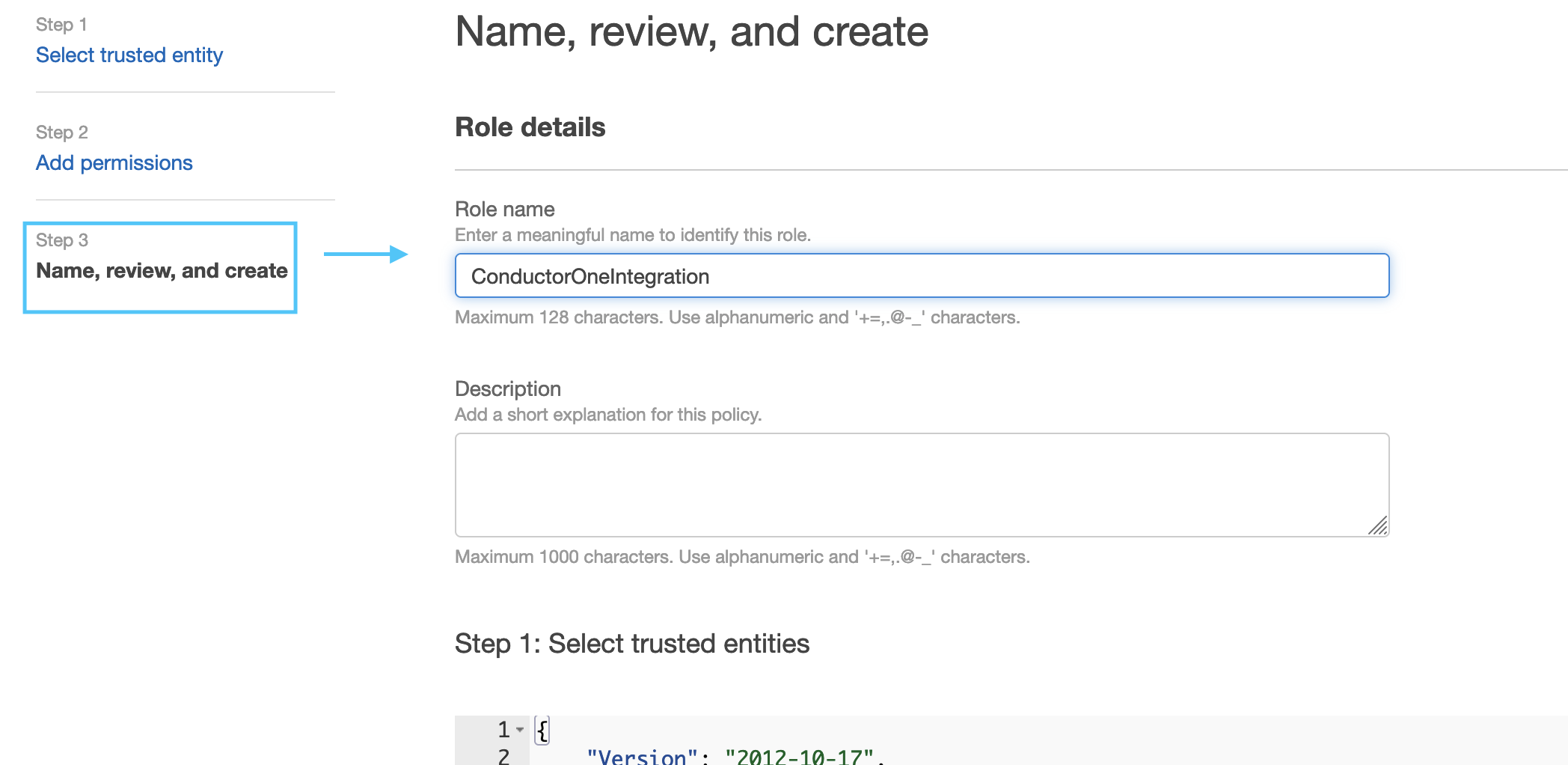
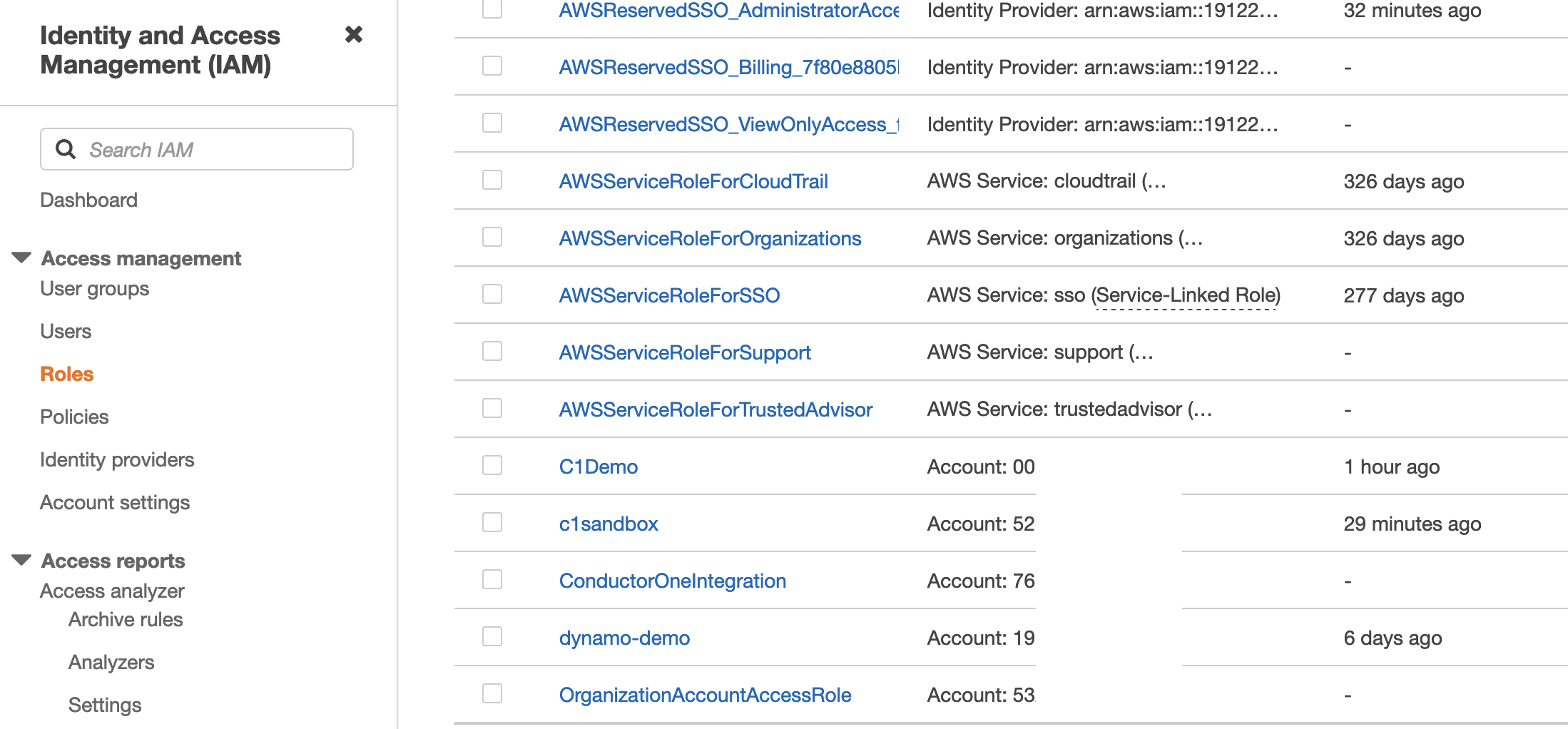
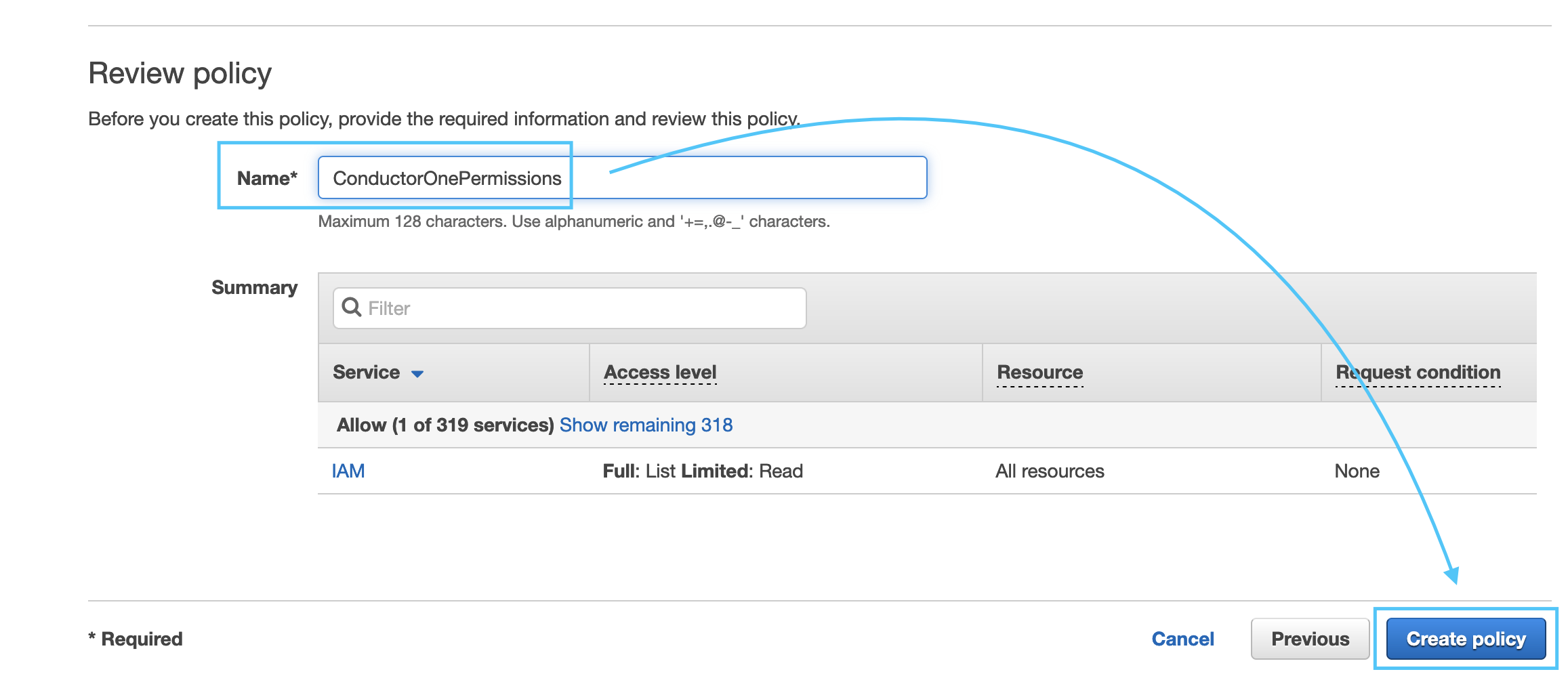
Navigate to the IAM Dashboard and select Roles > Create Role.
3
Select Custom Trust Policy and paste the following into the Trust Policy JSON editor, replacing EXTERNAL_ID_FROM_C1_INTEGRATIONS_PAGE with the value from Step 1.
Step 3: Integrate ConductorOne to your AWS instance
1
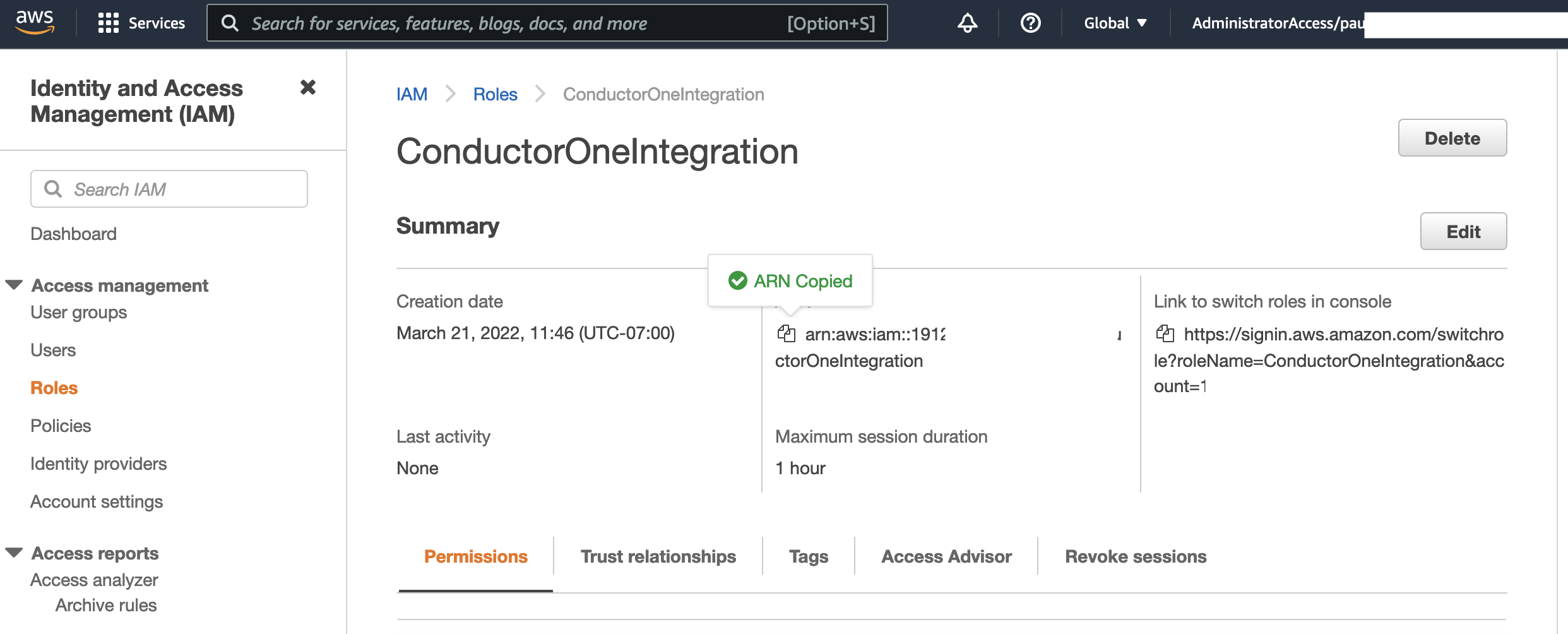
Return to ConductorOne and paste the AWS Role ARN you generated in Step 2 into the Role ARN field.
2
Optional. Click the checkbox to Enable support for AWS Organizations.If support for AWS Organizations is enabled, the IAM Role (as described in Step 2) must be created in the management (formerly called master) account of the AWS Organization. If the IAM Role is created on a member account and support for AWS Organizations is enabled, the integration will return a 400 error.
3
Optional. Click the checkbox to Enable support for AWS IAM Identity Center and select the region for AWS IAM Identity Center from the dropdown.
4
Optional. Click the checkbox to Enable usage of the AWS IAM Identity Center SCIM API and enter the SCIM endpoint and access token in the relevant fields.
5
Click Save.
6
The connector’s label changes to Syncing, followed by Connected. You can view the logs to ensure that information is syncing.
That’s it! Your AWS connector is now pulling access data into ConductorOne.