

Availability
General availability. The Google Workspace connector is available to all ConductorOne users.Capabilities
- Sync user identities from Google Workspace to ConductorOne
-
Resources supported:
- Groups
- Roles
-
Provisioning supported:
- Group membership
- Role assignment
Set up the Google Workspace integration
If this is your first Google Workspace integration, the integration form opens automatically. Otherwise, click Add connector.
Choose whether to add the new Google Workspace connector as a data source to an existing application (and select the app of your choice) or to create a new application.
Set the owner for this connector. You can manage the connector yourself, or choose someone else from the list of ConductorOne users. Setting multiple owners is allowed.
Next steps
- If you are the integration owner, proceed to Integrate your Google Workspace instance for instructions on integrating Google Workspace with ConductorOne.
- If someone else is the integration owner, ConductorOne will notify them by email that their help is needed to complete the setup process.
Integrate your Google Workspace instance
Step 1: Sign in to the Google Cloud Console and Create a New Project
As a Google Workspace Super Admin, sign in to https://console.cloud.google.com.
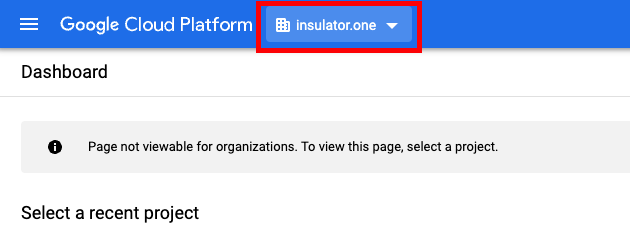
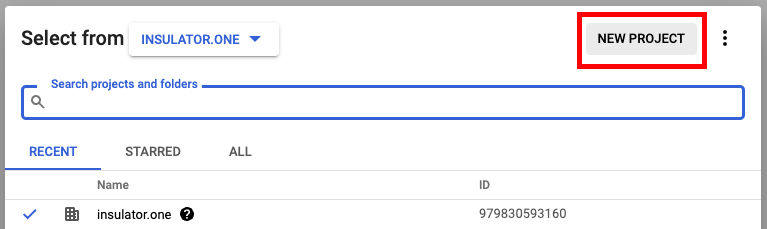
Create a new project for your organization: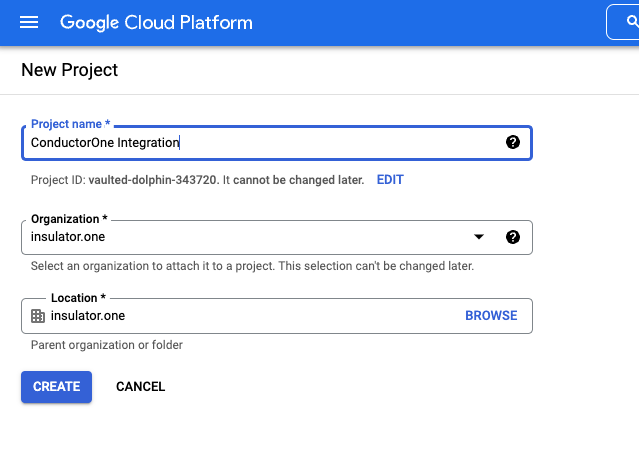
- Project Name: Choose a names, cush as “ConductorOne Integration”
- Organization/Location: Choose the appropriate Organization/Location
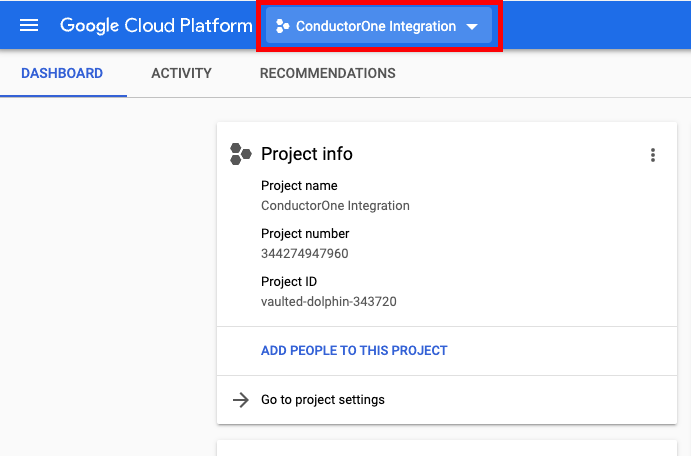
Step 2: Enable the API
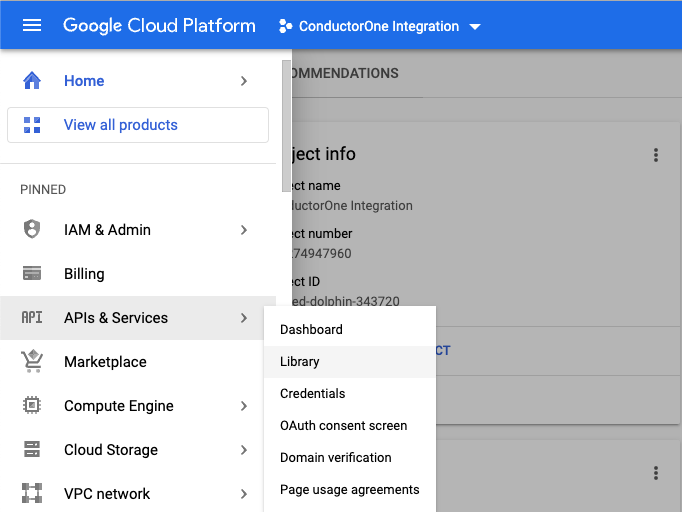
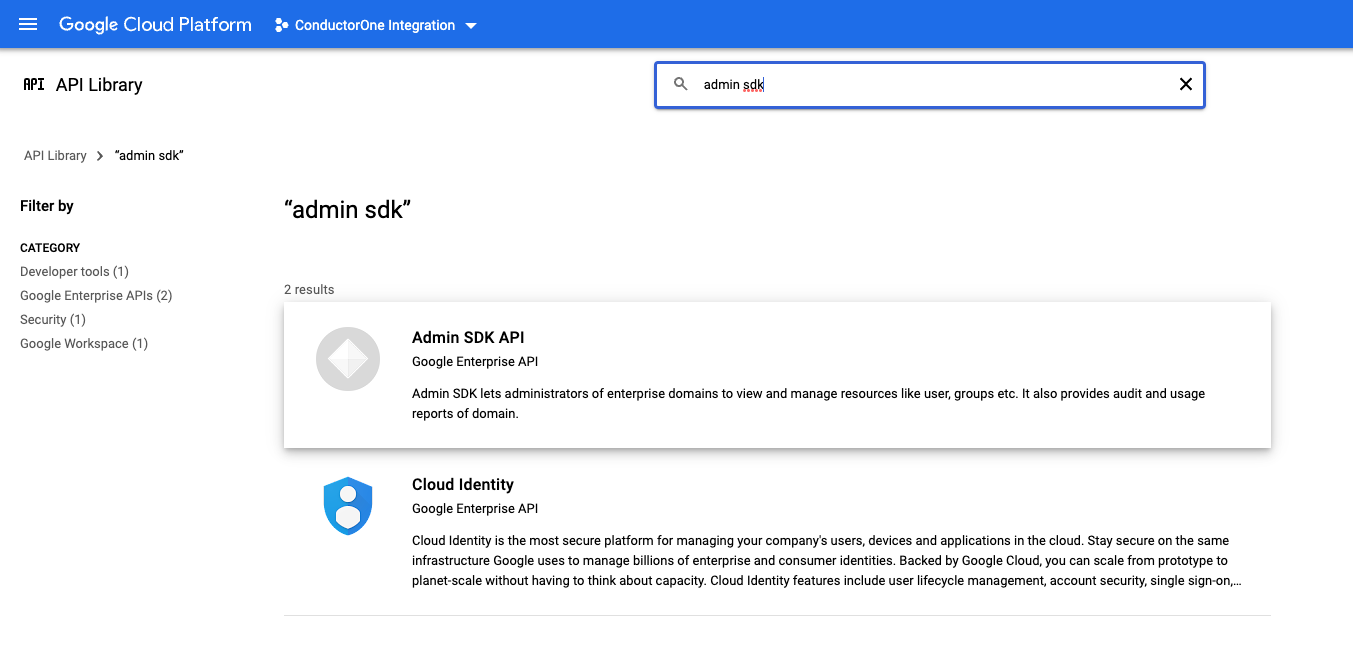
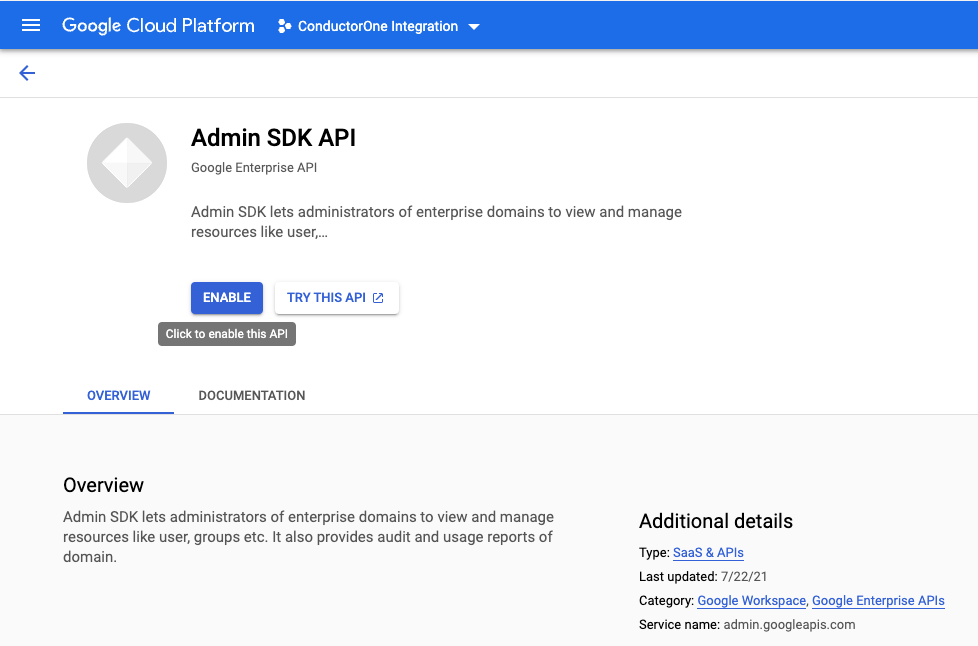
Step 3: Create a service account
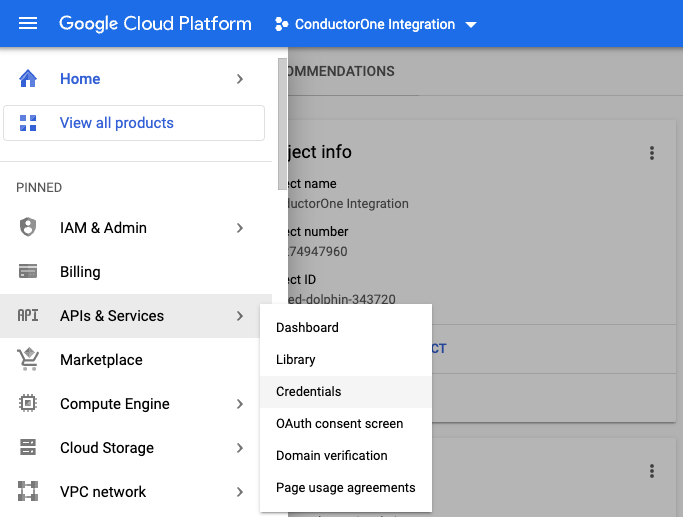
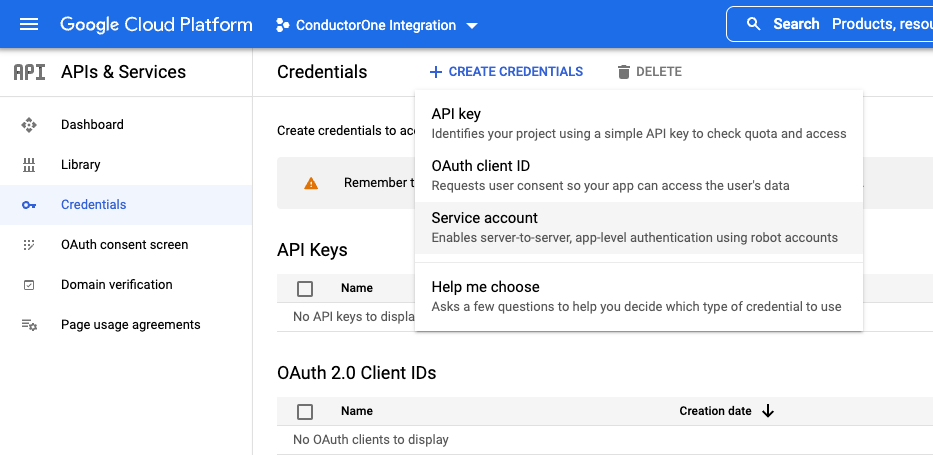
Under Service account details, fill in the following: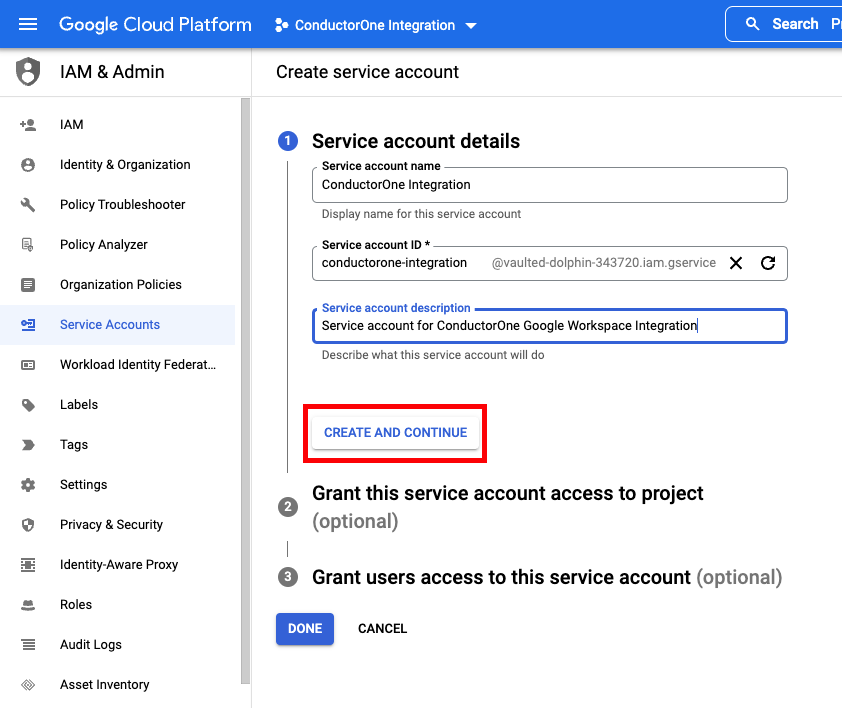
- Service account name: ConductorOne Integration
- Service account description: for example, “Service account for ConductorOne Google Workspace Integration”
- Click CREATE AND CONTINUE
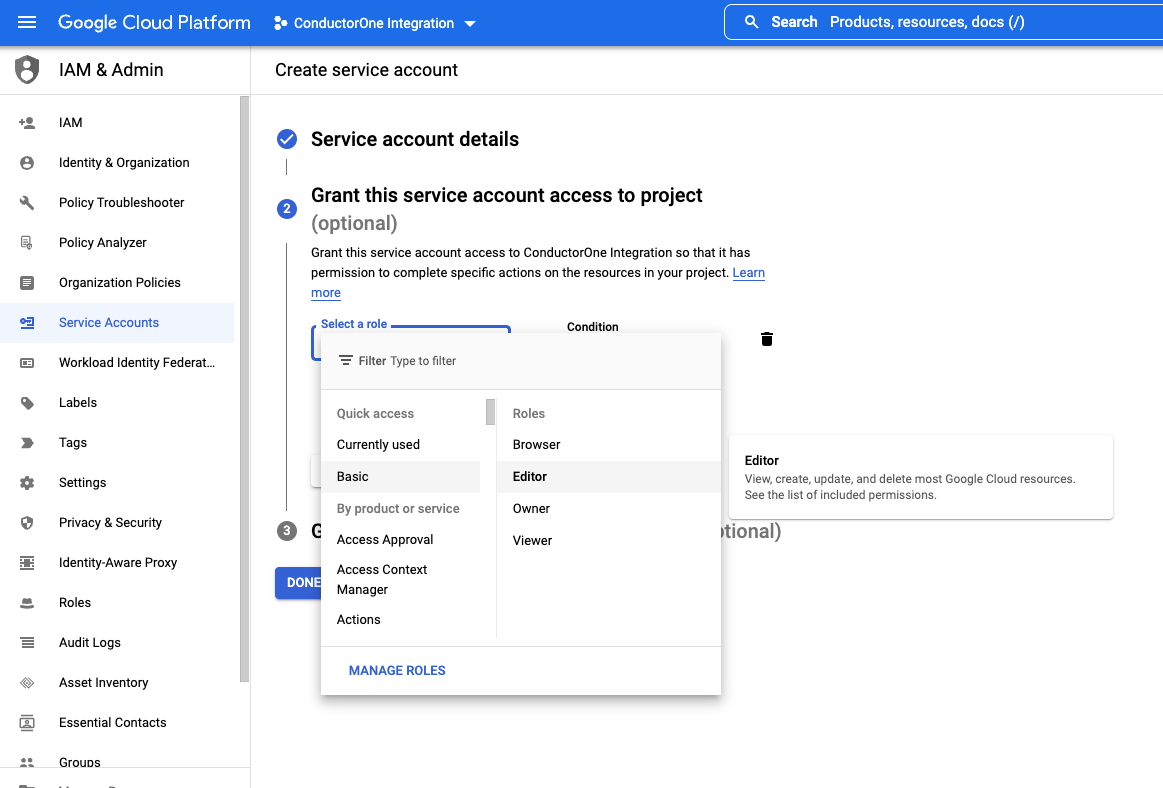
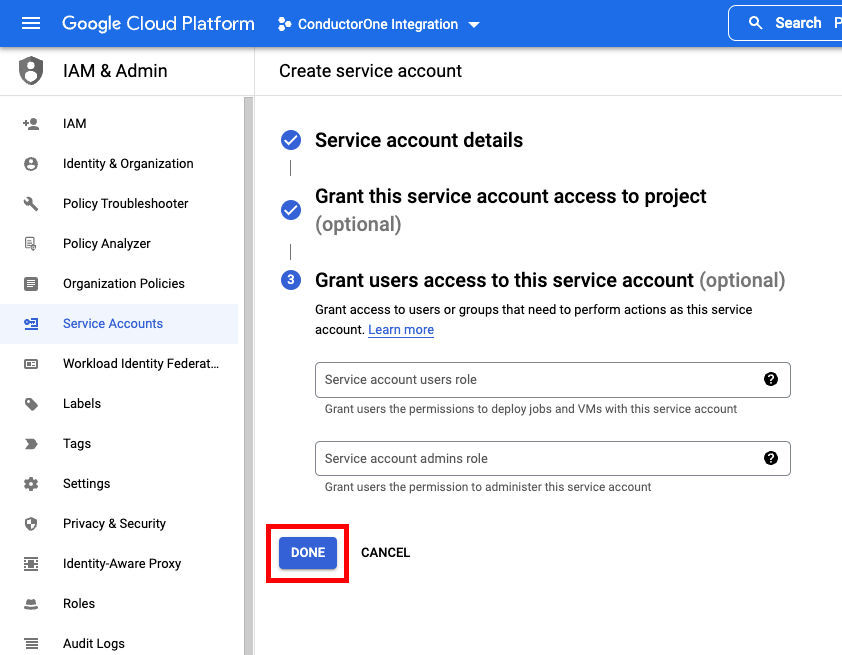
Step 4: Get credentials
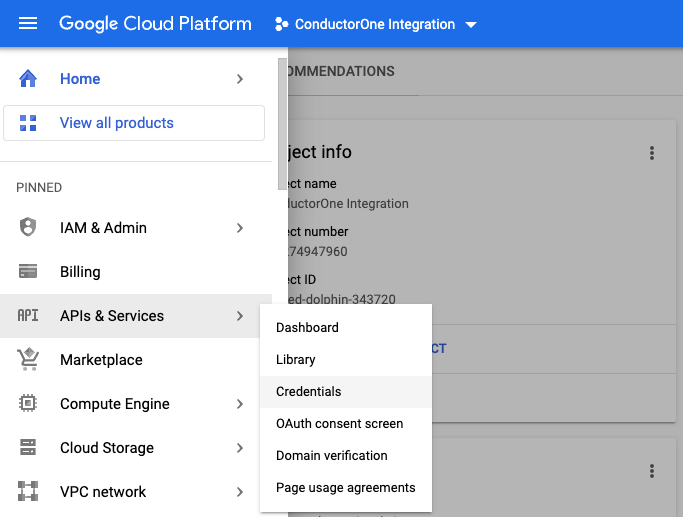
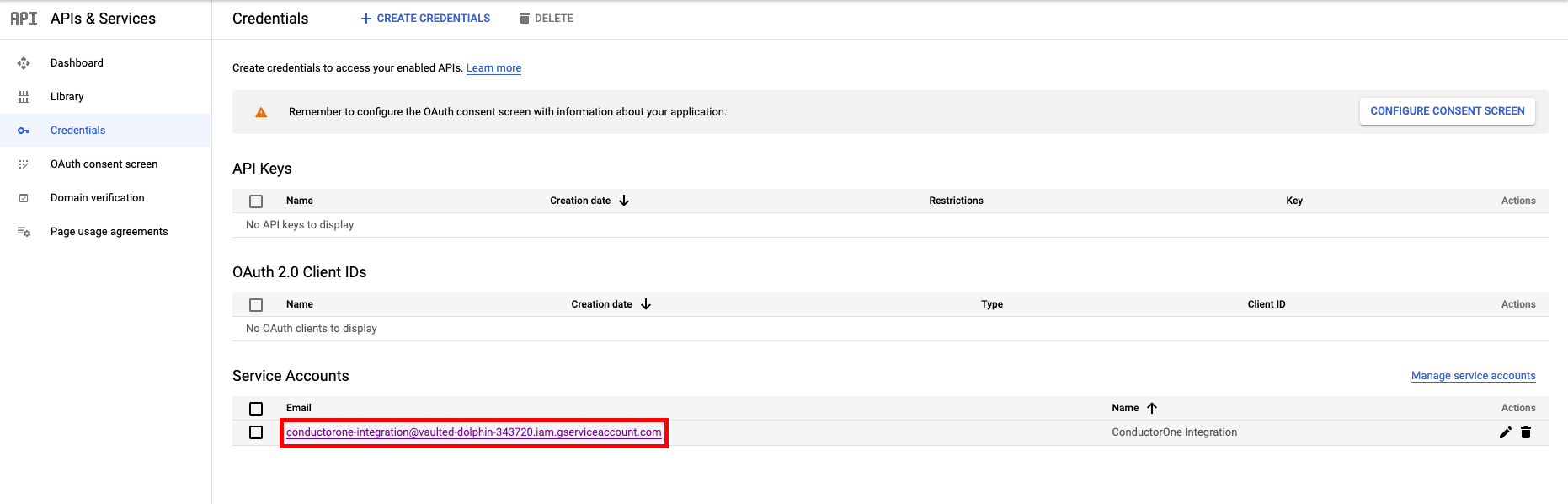
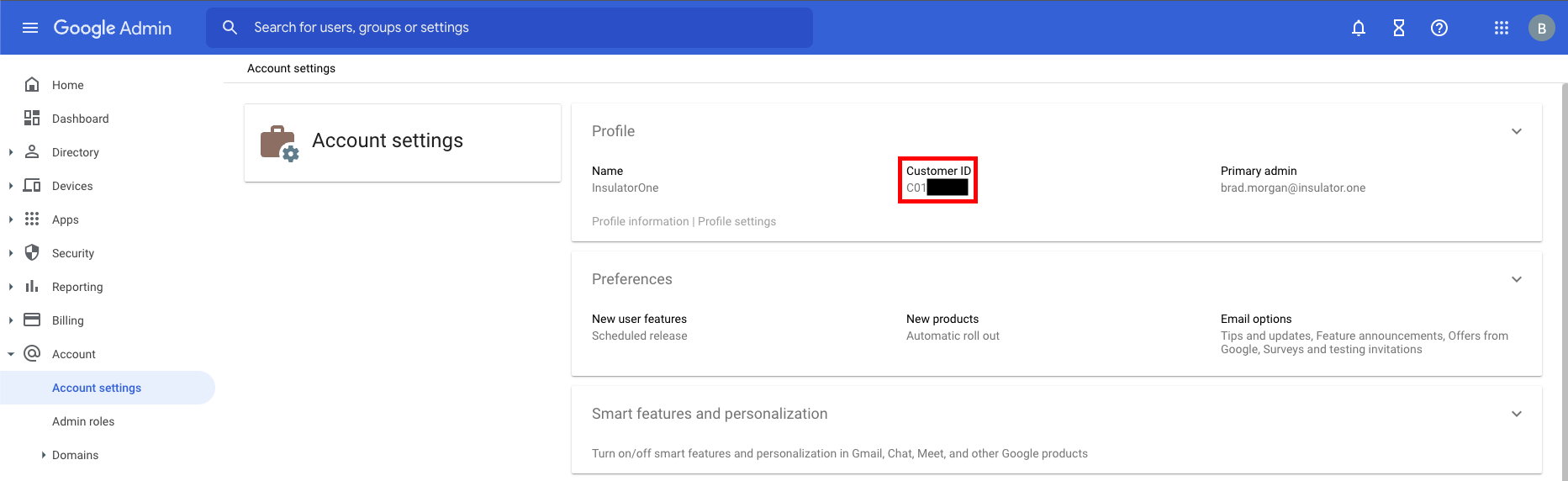
Click the service account’s email address. Locate and save the Unique ID. We’ll use this in Step 5.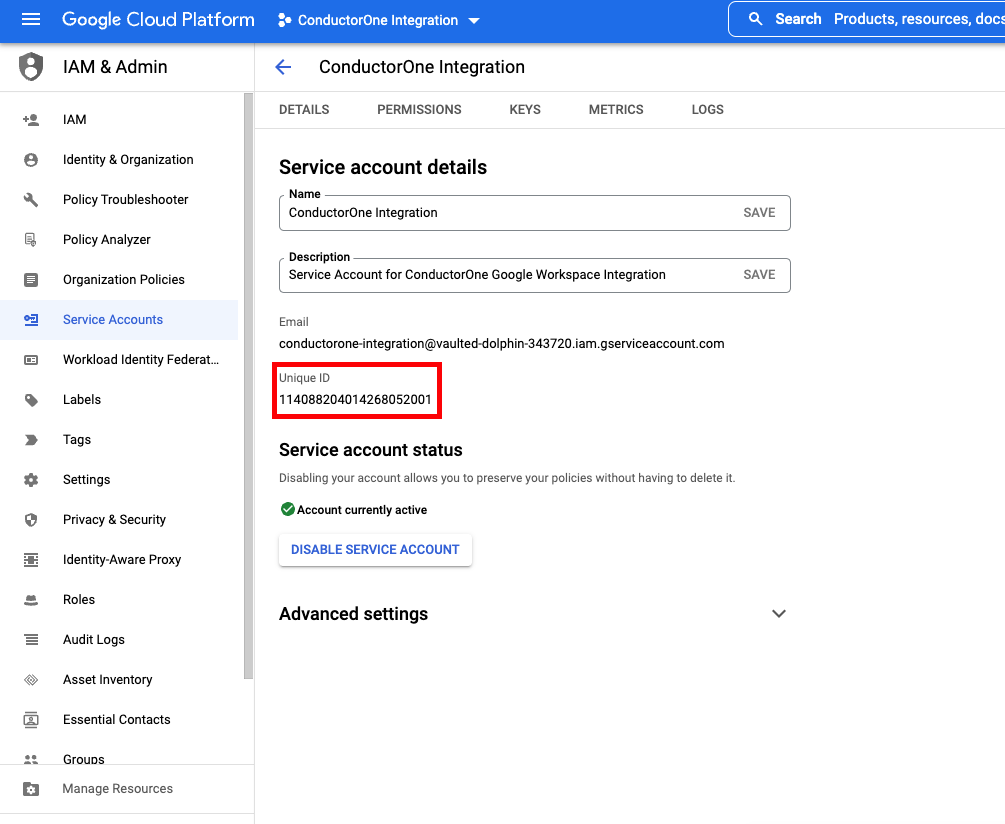
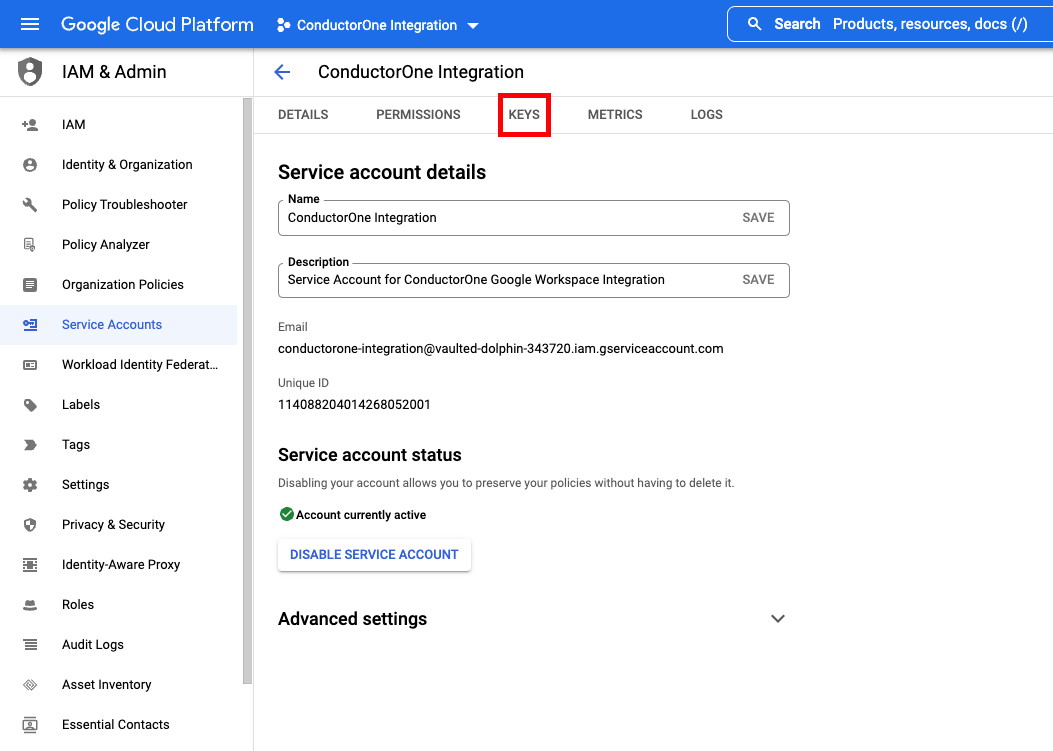
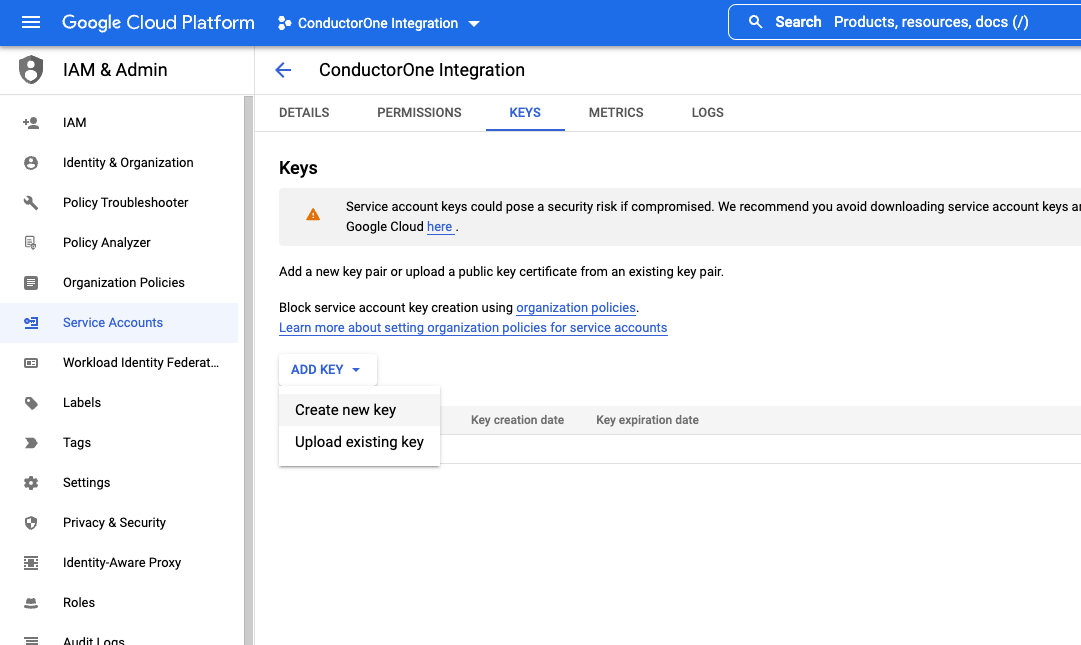
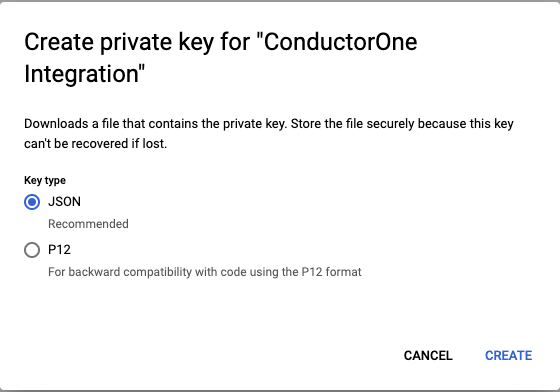
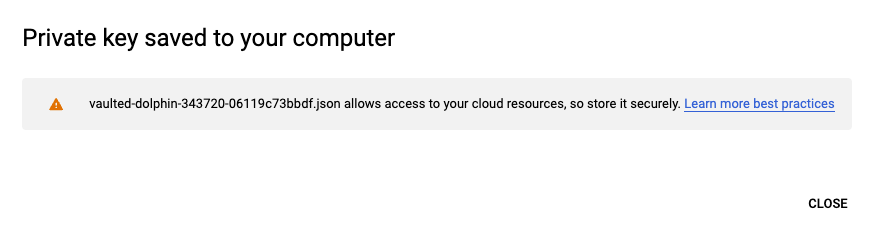
Step 5: Add Service Account to Google Workspace
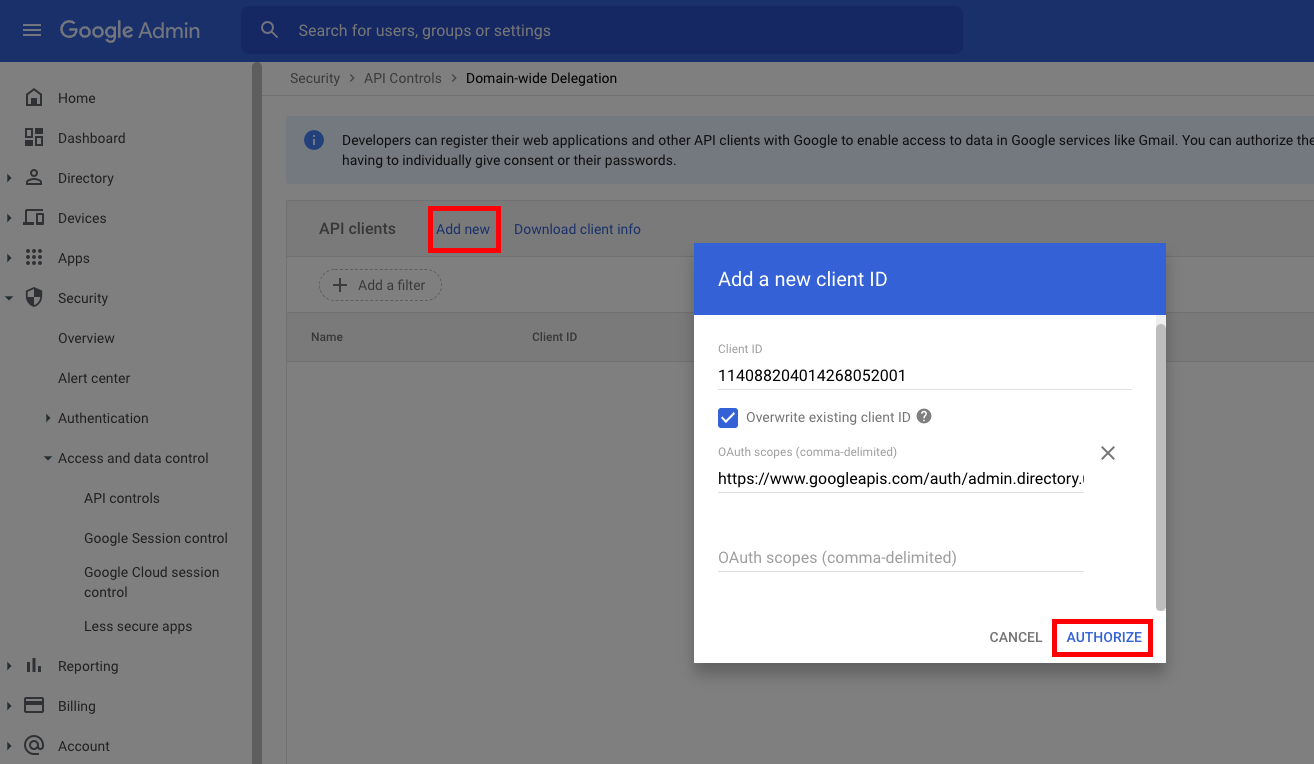
Go to https://admin.google.com as a SUPER ADMIN.
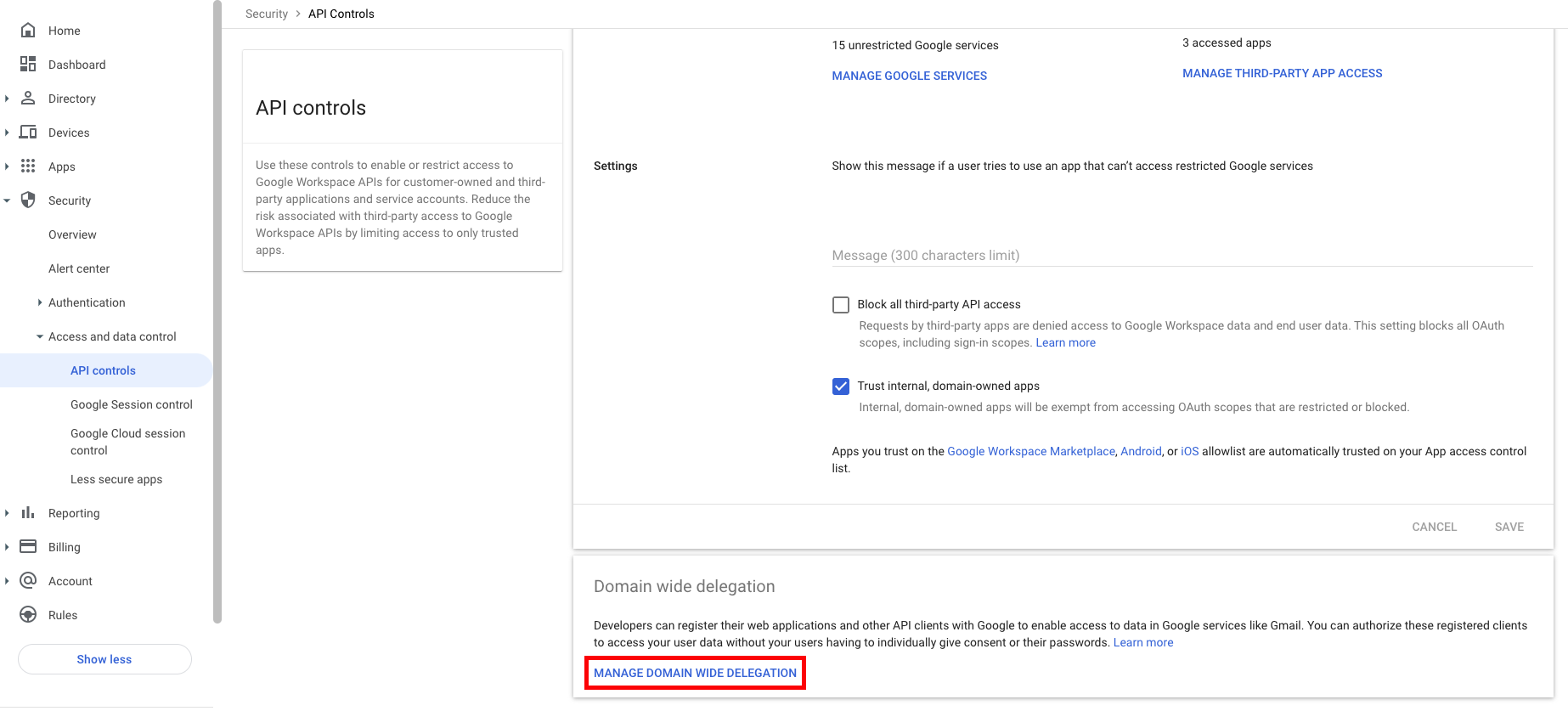
Click Add new and fill out the form:
- Client ID: The saved ID from Step 4
-
OAuth Scopes: Copy and paste one of the following lists of required scopes for your use case:
-
Use the following read-only scopes if you are not using the Google Workspace integration for provisioning:
-
Use the following scopes if you are using the Google Workspace integration for provisioning Groups and Roles:
-
Use the following read-only scopes if you are not using the Google Workspace integration for provisioning:
Step 6: Locate your Primary Domain
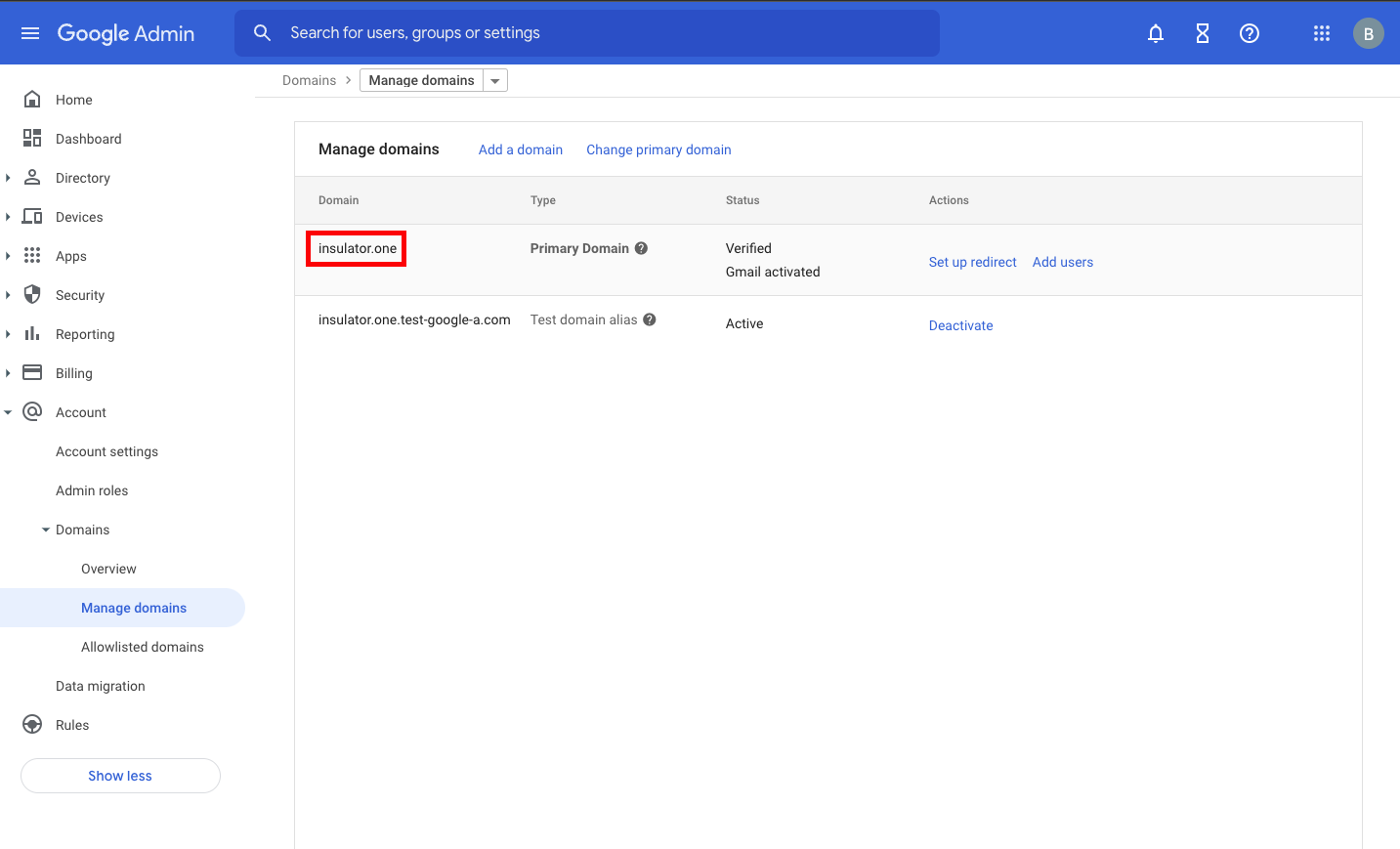
Step 7: Add your Google Workspace credentials to ConductorOne
In the list of connectors, locate and click on the name of the connector with the Not connected label.
In the Administrator email field, enter the email address associated with your domain or a super admin.