Capabilities
- Sync user identities from Snowflake to ConductorOne
-
Resources supported:
- Roles
Add a new Snowflake connector
Choose how to set up the new Snowflake connector:
- Add the connector to a currently unmanaged app (select from the list of apps that were discovered in your identity, SSO, or federation provider that aren’t yet managed with ConductorOne)
- Add the connector to a managed app (select from the list of existing managed apps)
- Create a new managed app
Set the owner for this connector. You can manage the connector yourself, or choose someone else from the list of ConductorOne users. Setting multiple owners is allowed.
Next steps
- If you are the connector owner, proceed to Configure your Snowflake connector for instructions on integrating Snowflake with ConductorOne.
- If someone else is the connector owner, ConductorOne will notify them by email that their help is needed to complete the setup process.
Configure your Snowflake connector
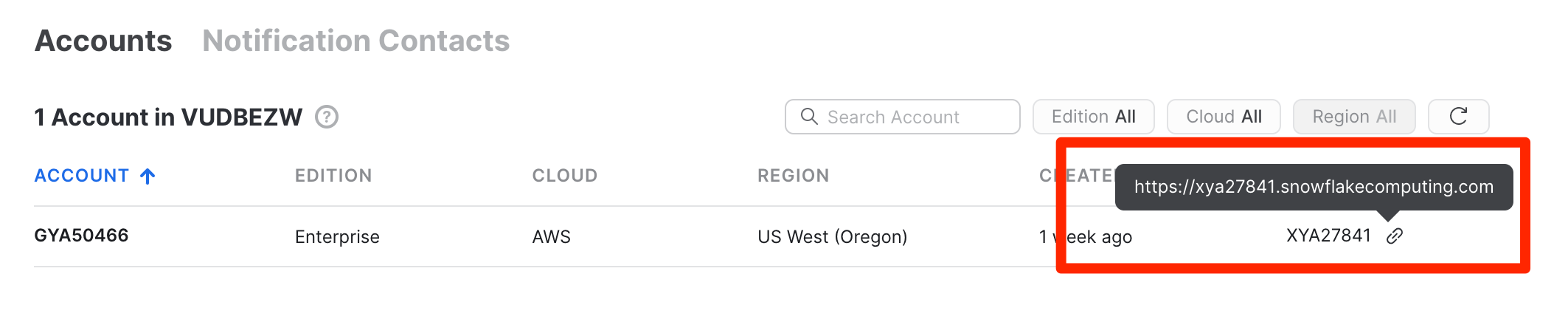
Step 1: Locate the Snowflake Locator for your account
Step 2: Add your Snowflake credentials to ConductorOne
In ConductorOne, navigate to the Snowflake connector by either:
- Clicking the Set up connector link in the email you received about configuring the connector.
- Navigate to Connectors > Snowflake (if there is more than one Snowflake listed, click the one with your name listed as owner and the status Not connected).
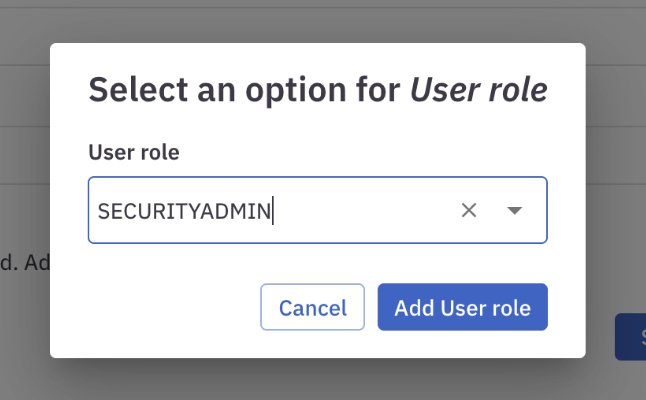
Step 3: Choose a role in Snowflake
That’s it! Your Snowflake connector is now pulling access data into ConductorOne.